Get your OpenAI Direct API key
On this page
Your OpenAI Direct API key lets this app use your OpenAI account. Paste it into the app. Outlet checks its format on your device and passes it to the app. Outlet never receives it.
Steps
Sign in to the OpenAI platform
Go to platform.openai.com and sign in, creating the account if you don't have one.
Open the API keys page
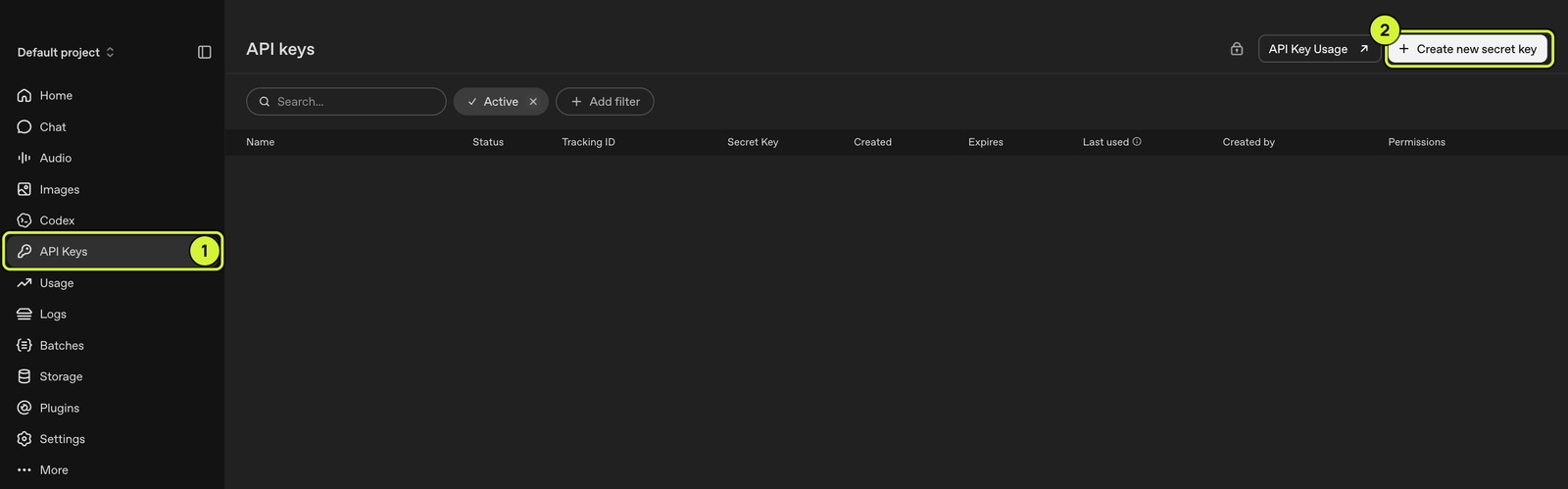
Go straight to platform.openai.com/api-keys, or click API Keys in the sidebar.
Create the key
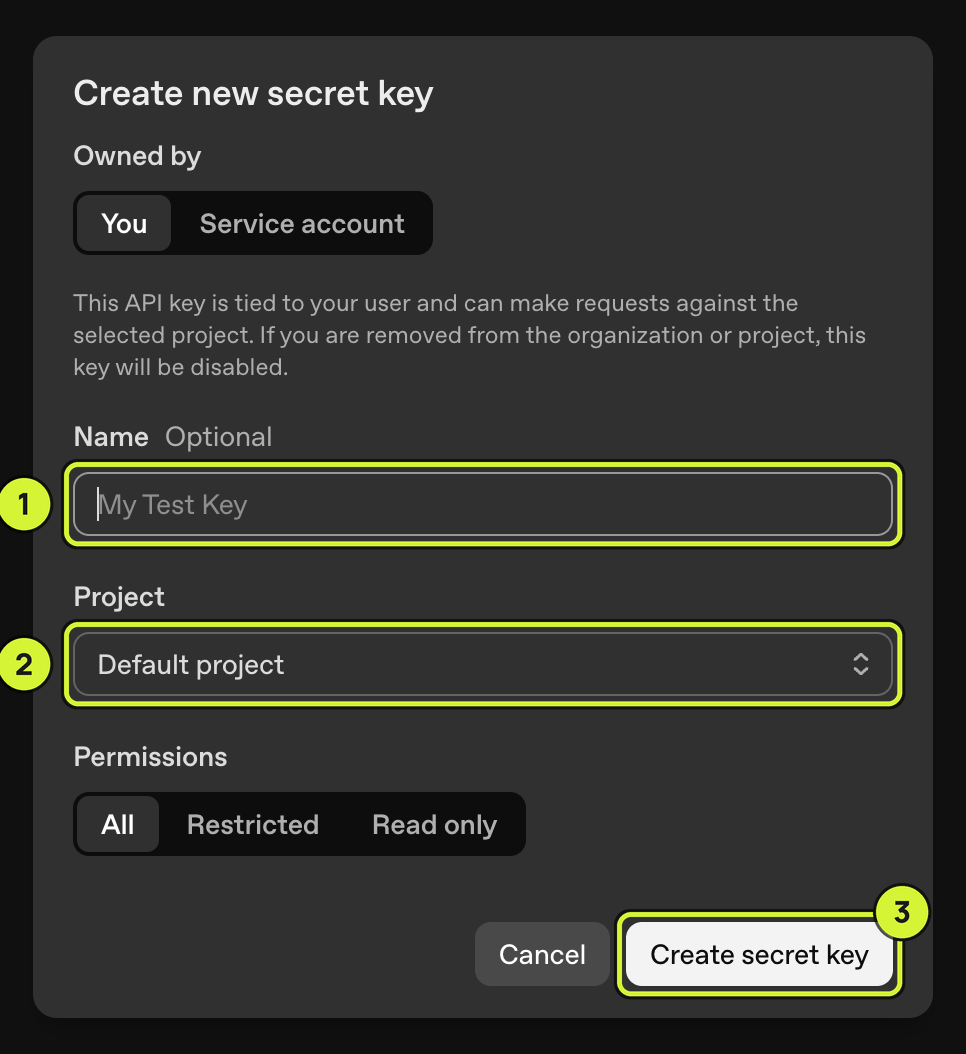
Click Create new secret key. Under Owned by, choose You. Name it after the app. Keep Project on Default project. Set Expiration to Never if it is offered. An expired key stops the app until you paste a new one. Keep Permissions on All. Click Create secret key.
Service account only changes who owns the key. It is not a Vault admin key. Either owner works in Direct.
Copy the key and paste it into the app
Copy the key before closing the dialog. Paste it into the app’s Direct API key field. OpenAI shows the full key only once. Delete this Direct API key on OpenAI’s API keys page to stop that app’s access.
Learn more
OpenAI's official quickstart: platform.openai.com/docs/quickstart.